To prevent the change of network profiles from private to public in Windows, you can use several methods. Local Security or Group Policy settings in Pro versions, or modify the registry. If you don’t know what you are doing, please don’t:
Using Secpol or Group Policy Editor (available in Windows Pro editions):
Open a Command Prompt as Administrator, type gpedit.msc or secpol.msc and hit Enter. This works only on Pro versions of Windows 10/11, for Home versions use option #2, Powershell.
If using secpol (Local Security Policy); navigate to Network List Manager Policies.
If using gpedit (Local Group Policy Editor); Navigate to Computer Configuration > Windows Settings > Security Settings > Network List Manager Policies.
Here, you can configure the properties of Unidentified network connections and set them to automatically be identified as Private connections.
Powershell: Of course Microsoft punishes it’s home users and removed the above tools for you. There is a registry hack, but use care:
Open the Start Menu, type powershell, and Run as Administrator.
Enter: New-ItemProperty -Path "HKLM:\SOFTWARE\Policies\Microsoft\Windows NT\CurrentVersion\NetworkList\Signatures\010103000F0000F0010000000F0000F0C967A3643C3AD74597D7D68A40445E36" -Name "Category" -Value 1 -PropertyType DWORD -Force This will force all future network connections to be Private.
Network Location Awareness Service:
You can also consider disabling the Network Location Awareness service, which can help in preventing automatic changes to network profiles. This can be done through the Services management console (services.msc).
Locate Network Location Awareness, right-click, and select Properties. Change the Startup type to Disabled. Be aware! Microslop Updates may enable this service in future updates.
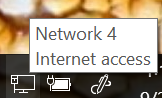
Now of course DO NOT DO THIS ON A NOTEBOOK OR WIFI CONNECTION! Microsoft’s default policy is designed to keep mobile users safe(er) by setting every new network connection to “Public”. However in a static home/business environment where the network doesn’t change, Microsoft’s shitty updates make Windows think you have a new network connection (hence the #4 in the above graphic), when NOTHING CHANGED. Changing a network from private to public will break all kinds of things including backups and the ability to connect to network resources (printers, etc.). This can be a real bitch depending. Truly Microslop as it’s worst.

Leave a Reply